How to Get More From Sage Intacct: 8 Features Finance Teams Underuse
Most organisations go live with Sage Intacct using roughly the same processes they had before implementation, just inside a new system. A few years on, that gap between what the system can do and what the Finance team actually uses tends to grow wider, not narrower. This article looks at how to get more from Sage Intacct by reviewing eight features that are generally available but consistently underused by Australian Finance teams, and what switching them on could mean for your month-end, your reporting and your team’s workload.
None of these features require a new implementation. Most are configuration changes, permission updates or a short training session away from being usable. The bigger question is usually whether your Finance team knows they exist.
Key Takeaways
- Many Sage Intacct customers only use a portion of the functionality included in their subscription, often because processes were set up years ago and never revisited.
- Features like Smart Excel Reporting and dynamic allocations can remove hours of manual spreadsheet work without changing your chart of accounts.
- AI-related functionality such as Sage Copilot and the Finance Intelligence Agent is expanding, but availability and rollout stage in Australia should be confirmed before you plan around it.
- Close Automation, AP Automation and Prepaid Expense Amortisation each target a specific repetitive task that Finance teams often still do by hand.
- A short, focused review of your Sage Intacct configuration against current functionality is usually more valuable than a full retraining program.
Why Finance Teams Underuse Sage Intacct Functionality
Sage releases new functionality several times a year. Most Finance teams do not have time to track every release note, and understandably so. The result is a slow drift between the version of Sage Intacct your organisation implemented and the version you are actually entitled to use today.

There are usually three reasons functionality goes unused:
- Nobody told Finance it exists. Release notes are written for a general audience, not translated into “here’s what this means for your month-end close.”
- The original implementation focused on go-live, not optimisation. Getting the core ledger, AP and AR working took priority over turning on every available module.
- Processes were built around the old way of working. A spreadsheet-based allocation process, for example, often survives the move to Sage Intacct simply because nobody questioned whether it was still necessary.
None of this is a criticism of your Finance team. It is simply how system adoption works without a periodic review. The following eight features are common examples of functionality sitting unused, or partly used, inside existing Sage Intacct environments.
How to Get More From Sage Intacct: 8 Features Finance Teams Underuse
These eight areas come up repeatedly when reviewing Sage Intacct environments for Australian not-for-profit and mid-market organisations. Some are quick wins. Others need a short configuration project. All of them map to a specific manual task you may be doing today.
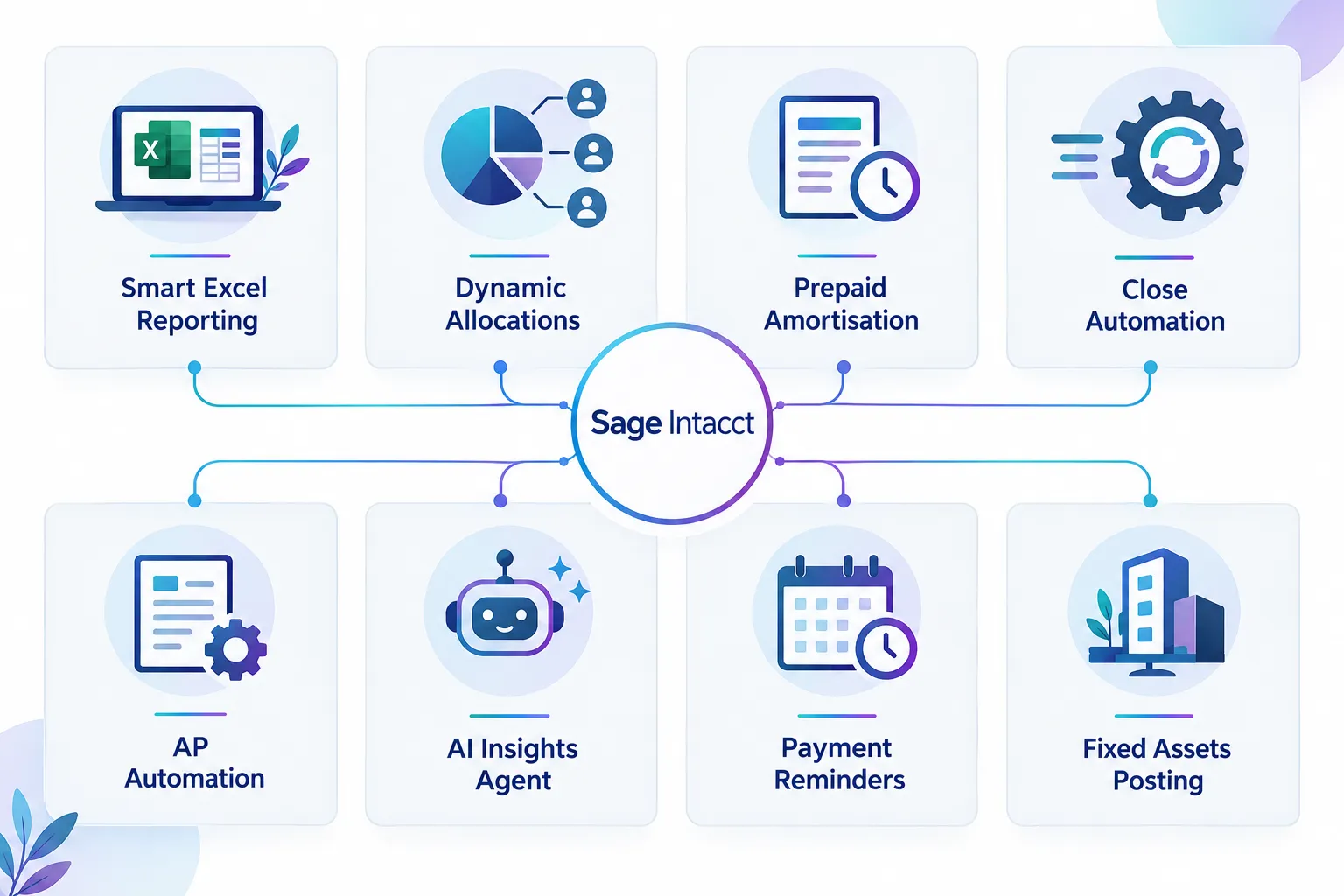
1. Smart Excel Reporting
Finance teams often export Sage Intacct data to Excel, then rebuild formatting, formulas and pivot tables every reporting period. Smart Excel Reporting connects live Sage Intacct data directly into Excel, so your report template pulls current figures without a manual export and rebuild each time.
This matters most for board packs, grant reports and management reporting that follow a consistent layout month after month. Instead of re-exporting and re-formatting, you refresh the data inside a template you already built.
Questions to ask: Which recurring reports are currently built by exporting data into Excel? Could those templates be converted to pull live data instead?
2. Dynamic Allocations
Cost and revenue allocations across departments, programs or funds are often done in spreadsheets, then journaled into Sage Intacct as a manual entry. Dynamic allocation functionality in Sage Intacct lets you allocate amounts across multiple dimensions, such as department, location or program, without changing the original source account.
For multi-entity or multi-program organisations, this removes a repetitive manual journal and reduces the risk of allocation errors creeping into financial reporting.
Questions to ask: How many manual allocation journals does your team post each month? Are the allocation rules documented anywhere other than in someone’s head?
3. Prepaid Expense Amortisation
Prepaid expenses, such as annual insurance or software subscriptions, are commonly tracked in a spreadsheet schedule, with a manual journal posted each month to release the expense. The Prepaid Expense Amortisation module automates this schedule inside Sage Intacct, generating the release journals automatically once the prepaid entry is set up.
This is a small process on its own, but it adds up. If your organisation has a dozen or more prepaid items running at any time, this is a recurring manual task that can run itself.
Questions to ask: How many prepaid schedules are currently tracked outside Sage Intacct? Who maintains them, and what happens if that person is away at month-end?
4. Close Automation and Close Analytics
Month-end close is often managed with a checklist in a spreadsheet or shared document, tracked manually by the Finance Manager. Close Automation and Close Analytics give you a structured, system-based view of close tasks, status and timing, so you can see where the close is up to without chasing team members individually.
This is particularly useful for Finance teams managing close across multiple entities, where consistency and visibility across each entity’s progress is otherwise hard to track centrally.
Questions to ask: How do you currently know whether month-end close is on track? Is that visibility available to anyone other than you?
5. Advanced AP Automation
Accounts payable teams frequently match invoices to purchase orders and receipts manually, line by line, especially where quantities or pricing vary slightly. Advanced AP Automation in Sage Intacct includes line-level matching and intelligent three-way matching, along with checks that can flag tax discrepancies or potential fraud indicators before an invoice is approved for payment.
For organisations processing a meaningful volume of purchase order-based invoices, this reduces the manual checking burden on your AP team and adds a consistent control layer.
Questions to ask: How much time does your AP team spend manually checking invoices against purchase orders? Where have matching errors caused payment issues in the past?
6. Finance Intelligence Agent and Sage Copilot
Sage has been building AI-assisted capability into Intacct, including the Finance Intelligence Agent and Sage Copilot, designed to let Finance users ask natural-language questions about their financial data rather than building a report from scratch. This is genuinely useful for quick questions, such as checking a vendor balance trend or a department’s spend against budget, without opening a report builder.
This is an area where Australian availability and rollout stage can vary. Some AI functionality has been released as Early Adopter or phased functionality in other regions before becoming generally available locally. Before you plan a process change around these tools, confirm current availability for your Australian Sage Intacct environment, either through your Sage Intacct Partner or the Sage Intacct Australia release notes.
Questions to ask: Has your organisation confirmed which AI features are currently available in your environment? Would your team benefit from training on how to phrase questions to get useful answers from these tools?
7. Automatic Payment Reminders and Embedded Customer Payment Services
Chasing overdue customer invoices is still, in many Finance teams, a manual email or phone call process. Embedded Customer Payment Services and Automatic Payment Reminders let customers pay invoices through an embedded payment option, with reminder emails triggered automatically based on invoice age, rather than someone manually tracking and chasing each overdue account.
For organisations with a meaningful volume of customer invoicing, this can meaningfully reduce the admin time spent on collections follow-up and help improve cash flow timing.
Questions to ask: How is your AR team currently tracking and following up overdue invoices? Would customers respond well to an automated reminder sequence, or does your customer base expect a personal follow-up call?
8. Fixed Assets Summarised Posting
Depreciation journals can generate a large number of individual general ledger lines, one per asset, which clutters the GL and makes it harder to review depreciation postings at a glance. Fixed Assets summarised posting configuration lets you post depreciation to the GL in summary form rather than line by line per asset, while detailed asset records remain available in the Fixed Assets module itself.
This is a configuration decision worth revisiting periodically, particularly as your asset register grows and the GL becomes harder to scan during month-end review.
Questions to ask: How many individual depreciation lines currently post to your GL each month? Does your team need that level of detail in the GL itself, or only in the Fixed Assets module?
Questions to Ask Before Switching On New Functionality
Turning on new functionality is not something to do purely because it exists. Before changing configuration, work through a short set of questions with your Finance team:
- What manual process does this feature actually replace?
- Who currently owns that manual process, and would they need retraining?
- Does this feature require a configuration change, a permission change, or additional setup data?
- Is the feature generally available in Australia, or is it Early Adopter or phased functionality?
- Will this change affect reporting that other stakeholders rely on, such as board reports or grant acquittals?
- Does your Finance team need training before this goes live, or alongside it?
A feature that looks useful in a release note is not automatically the right fit for your organisation’s current processes. The value comes from matching the feature to a real, specific manual task your team is doing today.
Getting More From Sage Intacct Features You Already Own
A practical way to approach this is a short internal review, rather than a full re-implementation. Pick two or three areas from the list above that map most closely to a process your team complains about, and look at what it would take to switch them on.
A simple review structure looks like this:
| Step | What to do |
|---|---|
| 1 | List your top five recurring manual Finance tasks |
| 2 | Match each task against the features covered above |
| 3 | Check current configuration and user permissions for each relevant feature |
| 4 | Confirm Australian availability for any AI or newly released functionality |
| 5 | Plan a short training session for the Finance team once configured |
This kind of review does not need to be a large project. For most organisations, it is a half-day exercise that identifies two or three genuine opportunities to reduce manual work.
Frequently Asked Questions
Are all eight of these features included in every Sage Intacct subscription? Feature availability depends on your specific Sage Intacct modules and subscription. Some functionality, such as Prepaid Expense Amortisation or Advanced AP Automation, may require a specific module to be enabled. Check with your Sage Intacct Partner or account representative to confirm what is included in your current subscription.
How do we know if a feature is available in Australia yet? The Sage Intacct Australia release notes are the most reliable source for confirming current Australian availability, along with whether a feature is generally available or still in Early Adopter or phased release. AI-related functionality in particular should be checked before planning a process around it.
Do we need a consultant to turn these features on, or can our Finance team do it internally? Some features, like Smart Excel Reporting, can often be configured by an experienced Sage Intacct user internally. Others, such as dynamic allocations or AP Automation matching rules, benefit from a more structured setup, particularly where multiple entities or complex allocation rules are involved. An independent Sage Intacct consultant can review your specific environment and recommend the right approach.
Will switching on new functionality disrupt our current month-end process? It can, if it is not planned properly. Any configuration change should be tested before go-live, ideally in a non-production environment, and your team should be trained on the change before it affects a live close.
How often should we review which Sage Intacct features we are using? A light review once or twice a year is reasonable for most organisations, particularly after major Sage Intacct release updates. Larger organisations or those with multiple entities may benefit from a more structured annual review tied to their budgeting or planning cycle.
Is this relevant to not-for-profit organisations specifically? Yes. Features like dynamic allocations, Smart Excel Reporting and Close Automation are particularly relevant for not-for-profit Finance teams managing reporting across programs, funds or grants, where manual allocation and reporting work is often heaviest.
Conclusion
Getting more from Sage Intacct rarely requires a new system or a major project. It usually starts with a focused look at what your subscription already includes and an honest conversation about which manual Finance tasks are still being done the old way.
Start small. Pick one or two features from this list that map directly to a process your team finds repetitive or time-consuming, such as a manual allocation journal or a prepaid expense schedule. Check your current configuration, confirm Australian availability where relevant, and plan a short training session before you go live with any change.
If you are not sure where to start, or want a second opinion on your current Sage Intacct configuration, an independent Sage Intacct consultant can review your environment and help identify which of these features would make the biggest practical difference to your Finance team’s workload.
Meta Title: Get More From Sage Intacct: 8 Underused Features for Finance
Meta Description: Discover 8 underused Sage Intacct features Australian Finance teams can activate to cut manual work, speed up reporting and improve month-end close.
Tags: Sage Intacct, Sage Intacct consulting, Sage Intacct Australia, Finance automation, Sage Intacct AI, Sage Intacct reporting, month-end close, Sage Intacct optimisation, not-for-profit Finance, Finance process improvement, AP automation, Sage Intacct training
Contributing writer at Dynamic Zenergy.